
The warning nobody should click past#
Every SSH and SFTP client has the same scary moment: you connect to a server you’ve connected to a hundred times before, and instead of a normal prompt you get something like this from OpenSSH:
@@@@@@@@@@@@@@@@@@@@@@@@@@@@@@@@@@@@@@@@@@@@@@@@@@@@@@@@@
@    WARNING: REMOTE HOST IDENTIFICATION HAS CHANGED!     @
@@@@@@@@@@@@@@@@@@@@@@@@@@@@@@@@@@@@@@@@@@@@@@@@@@@@@@@@@
IT IS POSSIBLE THAT SOMEONE IS DOING SOMETHING NASTY!
Someone could be eavesdropping on you right now (man-in-the-middle attack)!
I called this out in passing in the SFTP/FTP/FTPS post as one of the operational things that trips people up, and it deserves its own post, because the honest, complete answer to “what do I do here” is more than one sentence — and “just disable strict checking” is the wrong answer often enough that it’s worth explaining exactly why.
What known_hosts actually is#
During the SSH handshake — the same one from the SFTP post’s sequence diagram — the server presents a host key to prove its identity, the same way a private/public key pair proves a client’s identity during authentication. The client’s job is to verify that host key actually belongs to the server it thinks it’s talking to, before trusting anything else about the connection, including where it sends your password or which files it hands over.
SSH does this with a trust-on-first-use (TOFU) model, not a certificate authority chain like TLS normally uses. The first time you connect to a given host, OpenSSH shows you the server’s key fingerprint and asks you to confirm it, then stores an entry — hostname (or IP), key algorithm, and the key itself — in a local known_hosts file (~/.ssh/known_hosts per user, or /etc/ssh/ssh_known_hosts system-wide). Every connection after that compares the presented key against the stored entry automatically, with no prompt, unless something doesn’t match.
This is genuinely simple and it’s exactly why the warning above is scary: a mismatch means one of exactly two things happened, and the client has no way to tell which one on its own — either the server legitimately got a new host key, or something is intercepting your connection and presenting a different key entirely. ssh(1) and sshd(8) both cover this model in detail; ssh_config(5) is where the behavior is actually configured.
StrictHostKeyChecking modes#
StrictHostKeyChecking in ssh_config controls what happens on a first connection and on a mismatch:
yes— refuses to connect to an unknown host at all, and refuses on any mismatch. No prompts, fails closed. The right setting for anything automated and unattended.accept-new— the current OpenSSH default for interactive use. Silently accepts and stores a key on first connection (still TOFU), but still fails closed on a mismatch against an existing entry.ask— prompts on first connection (the classic “are you sure you want to continue connecting?” dialog) and still fails closed on mismatch.no— accepts and auto-stores any key, first connection or changed, no prompts, ever. This disables host verification entirely. It shows up in “fix” instructions on forums constantly, and it defeats the entire purpose of the mechanism — you’d accept a man-in-the-middle’s key just as readily as the real one.
For anything partner-facing or automated — which describes basically every B2Bi SFTP connection — StrictHostKeyChecking yes with a deliberately managed known_hosts file is the right posture. Unattended jobs should never be the ones deciding whether to trust a changed key.
Here’s the whole verification decision as one picture — this is what runs on every SSH or SFTP connection, not just the scary ones:
flowchart TD
    A["Client connects"] --> B{"Host already in\nknown_hosts?"}
    B -->|"No — first time"| C{"StrictHostKeyChecking\nmode"}
    C -->|"yes"| D["Refuse connection"]
    C -->|"accept-new"| E["Store key silently,\nproceed"]
    C -->|"ask"| F["Prompt user,\nthen store if confirmed"]
    C -->|"no"| G["Store key silently,\nproceed — no verification"]
    B -->|"Yes"| H{"Presented key matches\nstored entry?"}
    H -->|"Match"| I["Proceed normally —\nno prompt, no warning"]
    H -->|"Mismatch"| J["⚠ REMOTE HOST IDENTIFICATION\nHAS CHANGED — fail closed"]

    style D fill:#4a1a1a,stroke:#c0392b
    style J fill:#4a1a1a,stroke:#c0392b
    style G fill:#4a1a1a,stroke:#c0392b
    style I fill:#1a3a1a,stroke:#27ae60
That bottom-right red box is the warning from the top of this post. Everything above it is what got you there — and the no path (bottom left, also red) is the forum “fix” that skips verification entirely rather than actually resolving anything.
Fingerprints and host key algorithms#
A host key fingerprint is a short hash of the actual key, used because comparing a full key visually is impractical. Modern OpenSSH shows fingerprints as base64-encoded SHA256 by default:
SHA256:xxxxxxxxxxxxxxxxxxxxxxxxxxxxxxxxxxxxxxxxxxxOlder tooling and documentation sometimes still shows the legacy hex-colon MD5 format — both represent the same underlying key, just hashed differently for display; ssh-keygen -l can print either (-E md5 forces the old format).
Servers can hold multiple host keys of different types simultaneously — commonly RSA and ed25519 side by side, sometimes ECDSA too — and the client and server negotiate which one to use the same way they negotiate ciphers and MACs, via HostKeyAlgorithms preference order. This matters practically: if a server rotates only its RSA host key but a client is configured to prefer ed25519, that client may not even notice the RSA key changed, because it never uses that key type. Worth knowing which key type your automated jobs are actually pinned to before assuming a rotation was “silent.”
ssh-keyscan fetches a host’s currently-presented key(s) without going through the interactive TOFU prompt — useful for pre-populating a known_hosts file from a trusted, automated process rather than an interactive “yes, I’m sure” click, and it’s how I generate the known_hosts entries I ship as part of a partner onboarding checklist rather than trusting whatever an engineer clicked through once.
Hashed known_hosts#
By default, modern OpenSSH stores known_hosts entries with the hostname itself hashed (HashKnownHosts), specifically so that a leaked known_hosts file doesn’t hand an attacker a ready-made list of every host you connect to. Worth knowing this is on by default and why, especially on any shared or multi-tenant box — like a Sterling Perimeter Server that’s terminating connections to dozens of trading partners — where that file becomes a meaningful piece of information on its own.
The rotation problem: legitimate change vs. something worse#
Here’s the actual decision you’re facing when that warning appears, stripped of the scary formatting: a key changed — was it supposed to?
The only reliable way to answer that is to verify the new fingerprint through a channel that isn’t the SSH connection itself. In practice, for partner connections, that means:
- Don’t accept anything yet. The stale entry failing closed is doing its job.
- Contact the partner through an already-trusted channel — a phone call to a known number, a message through an established support portal, a signed email thread you already have a relationship with — and ask them to confirm the new fingerprint directly. Not “did you change your SFTP server,” specifically the new key’s SHA256 fingerprint, read back to you or sent through that separate channel.
- Compare it to what the connection is actually presenting.
ssh-keyscanor a manual connection attempt will show you the fingerprint being offered; it needs to match what the partner confirmed, not just “look plausible.” - Only then remove the stale entry and reconnect.
ssh-keygen -R hostnameremoves the old entry fromknown_hostscleanly (it also handles the hashed-hostname case correctly, which manually editing the file doesn’t); reconnecting underaccept-newor interactively then stores the verified new key.
Skipping straight to ssh-keygen -R the moment a connection fails is the single most common mistake here — it “fixes” the symptom identically whether the cause was a legitimate server rebuild or an active interception, which is exactly the distinction this whole mechanism exists to preserve.
As a decision tree, the four steps above look like this:
flowchart TD
    A["⚠ Host key mismatch warning"] --> B["Do NOT accept —\nleave the connection failed"]
    B --> C["Contact the partner via an\nalready-trusted out-of-band channel"]
    C --> D["Partner reads back the new\nSHA256 fingerprint directly"]
    D --> E{"Matches what the\nconnection is presenting?"}
    E -->|"Yes"| F["ssh-keygen -R hostname\n— remove stale entry"]
    F --> G["Reconnect — new key\nstored and trusted"]
    E -->|"No"| H["STOP — treat as a\npossible interception"]
    H --> I["Investigate the network path.\nDo not connect."]

    style A fill:#4a3a1a,stroke:#d4a017
    style H fill:#4a1a1a,stroke:#c0392b
    style I fill:#4a1a1a,stroke:#c0392b
    style G fill:#1a3a1a,stroke:#27ae60
The entire point of the flow is that the verification step (D → E) happens on a channel the attacker in a MITM scenario doesn’t control. Skip that step and the flowchart collapses into “accept whatever the connection shows me” — which is just StrictHostKeyChecking no with extra steps.
Scaling this beyond one-off verification#
Phone-call verification doesn’t scale past a handful of partners. Two approaches that do:
- A documented, automated
known_hostsdistribution process — populate and updateknown_hostsentries from a controlled pipeline (infrastructure-as-code, a config management run, a signed manifest) rather than individual interactive prompts, so “accepting a new key” is an auditable, deliberate change rather than an ad hoc click. - SSH certificates (a CA signs host keys, and clients trust the CA rather than pinning individual host keys) solve this properly at scale, though they require a CA infrastructure and coordination most partner relationships won’t have in place.
ssh-keygen’s certificate authority options andsshd_config’sTrustedUserCAKeys/host cert options cover the mechanics; worth knowing the option exists even if most partner SFTP setups you’ll touch are plain TOFU key pinning.
Can I keep the same host key across a Linux upgrade?#
Yes — and for anything partner-facing, you generally should. A host key is nothing more than a file pair on disk (typically under /etc/ssh/, one private key like ssh_host_ecdsa_key and its matching .pub), and sshd presents whatever key material those files contain. Nothing about the key is tied to the OS version, the package version, or the hardware — as long as the exact same key files exist at the paths sshd_config’s HostKey directives point to when sshd starts, it’ll present the identical key, with the identical fingerprint, and no client anywhere will see anything change.
That means the safe pattern for an OS upgrade (or a server migration, a container rebuild, a disaster-recovery restore, anything where the box itself changes but its identity shouldn’t) is:
- Back up
/etc/ssh/ssh_host_*_keyandssh_host_*_key.pub(all key types you’re currently serving) before the upgrade, preserving ownership and permissions — private keys need to stay600, owned byroot. - Run the upgrade. Most package managers will generate fresh host keys automatically if none exist, which is exactly the case you’re avoiding.
- Restore the original key files to the same paths, with the same permissions, before
sshdstarts serving connections again (or restart it after restoring). - Verify the fingerprint with
ssh-keygen -lf /etc/ssh/ssh_host_ecdsa_key.pub(or whichever type) and confirm it matches what it was before — cheap insurance before you call the upgrade done.
Do this correctly and every partner’s known_hosts entry, and every registered host key inside Sterling’s trading partner configuration, stays valid with zero coordination required. Skip it — let the upgrade regenerate fresh keys — and you’ve manufactured exactly the “REMOTE HOST IDENTIFICATION HAS CHANGED” scenario from the top of this post, for every single partner connecting to that box, on a self-inflicted schedule. If you do end up rotating (deliberately, or because a fresh key was unavoidable), that’s the moment to loop back to the verification steps above and treat it like any other planned rotation: fingerprint communicated in advance, through a channel you already trust.
What this looks like in B2Bi#
Sterling’s own version of a known_hosts file is the SSH Known Host Key screen under trading partner / adapter configuration — this is where B2Bi stores the host keys it has collected from remote SFTP servers before trusting them, whether that’s a partner’s server (for an outbound SFTP Client Adapter connection) or another node in your own cluster.
Collecting a new key walks through the same fingerprint-review step ssh does on first connection, just with a UI in front of it — here it’s pulling the key from 192.168.100.251, showing the algorithm, bit length, and SHA256 fingerprint before anything is trusted:
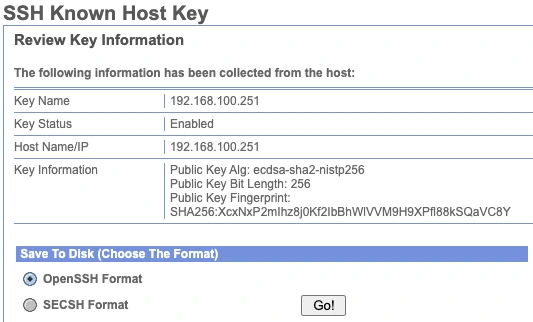
Notice the Save To Disk option at the bottom, with a choice between OpenSSH Format and SECSH Format — the exact same two key file formats covered in the SFTP/FTP/FTPS post. This is precisely why that distinction matters in practice: exporting a host key from Sterling to hand to a partner (or importing one they send you) means picking the format the receiving system actually understands, not just downloading whatever the default is.
Once a key is reviewed and checked in, it shows up as a managed entry — key ID, name, type, length, status, and fingerprint, all visible at a glance:
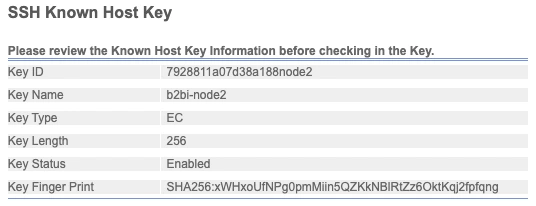
That Key Type: EC / Key Length: 256 is Sterling’s label for an ECDSA key on the P-256 curve — the same ecdsa-sha2-nistp256 algorithm shown in the collection screen above, just surfaced with friendlier field names.
When a partner’s host key changes and the old one is what’s registered here, the outbound connection simply starts failing with a host key verification error in the Business Process logs — the same fail-closed behavior as an ssh client hitting a known_hosts mismatch, just logged differently. There’s no ambiguity in the failure mode, but it does mean a partner rebuilding their server over a weekend becomes a Monday-morning stuck Business Process if nobody was told in advance.
The practical process I run: partner notifies us (or we notice the failure) → verify the new fingerprint through an out-of-band channel per the steps above → collect and review the new key on this screen, confirming the fingerprint matches what was verified → check it in, replacing the stale entry → re-test with a single manual transfer before letting the automated schedule pick back up. Worth having this written down somewhere your team can find at 2am, because “which screen do I even update this on” is not a question you want to be researching during an incident.
Sources & further reading#
As with the rest of what I write about this stuff: the man page content is the authoritative source linked above, the framing, the rotation process, and the B2Bi-specific notes are mine.
This post is a spin-off from SFTP, FTP, FTPS: Protocol Behind the Adapters — worth reading first if you want the full picture of where host key verification fits into the SSH handshake.